


PS Remote Play
2.811.63K Reviews
App Specs
- Version
- 9.1.0
- Updated On
- License
- Free
- Downloads
- 10,000,000+
- Developer
- PlayStation Mobile Inc.
- Categories
- Entertainment
- Platform
- Android, iOS
Screenshots
 Analysis by AppCompare
For me, the most useful way to think about PS Remote Play is as a second screen for a PlayStation you already own, not as a replacement for the console or a general game-streaming service. It can move a session away from the television, which matters when the screen is occupied, but the experience still depends on the console, your connection and controls that suit the game. That makes it a practical convenience in the right home, rather than a guaranteed way to play well from anywhere.
How it fits into everyday play
I’d look at this entertainment app if you want more flexibility around when and where you use a PS4 or PS5. PlayStation Mobile Inc. makes it free, and its broad reach is reflected in over 10 million installs. It has a 2.8 average from around 123,000 ratings, so I wouldn’t assume every setup will feel effortless; network conditions and personal expectations can make a noticeable difference. The app is rated for Everyone, was released in 2014, and its current version is 9.1.0, with Android 10 as the minimum OS.
That combination of convenience and dependence on a home setup is the key to judging it fairly. Remote play is most appealing when the console is ready to use and the game can tolerate the small delays or control compromises that may come with streaming. If you expect the same consistency as sitting beside the console on a wired display, you may be disappointed. If you mainly want a way to keep playing when the television is unavailable, it can earn a place in your routine.
Readability and finding your way around
Ever wished you could play your favorite PlayStation games while lounging on the couch, without having to sit right in front of the console? Well, let me introduce you to PS Remote Play. This nifty app lets you stream your PlayStation games to your phone, tablet, or PC, so you can game from just about anywhere in your house. Let’s dive in and see what this app is all about.
Getting started with PS Remote Play is surprisingly straightforward. You’ll need a PS4 or PS5, a decent internet connection, and a compatible device. The app works on both Android and iOS, as well as Windows and macOS, so you’re pretty much covered no matter what tech you’ve got.
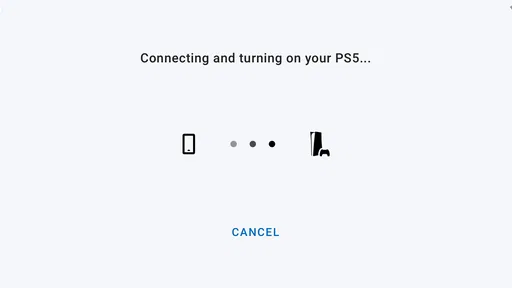
Once you’ve downloaded the app, the setup process is a breeze. Just make sure your PlayStation console is updated to the latest software version. Then, sign into your PlayStation Network account on the app, and voilà—you’re ready to stream! I was up and running in about 10 minutes, which is a huge plus for anyone who’s not super tech-savvy.
For everyday use, I’d treat the app as a way into your console rather than a separate library to browse. A useful habit is to decide what you want to play before settling into a remote session: switching games is convenient, but each change still asks the console to move your session along. If you’re handing the television back to someone else, starting the game first and then moving to a quieter spot can make the transition feel less fussy.
Worth Reading Before You Choose

EA SPORTS FC Mobile 26 Is a Bigger Football Game, but It Takes Time

Flipboard Shows What News Apps Must Do Beyond the Feed

Switching to Android Auto Means Rethinking Your Driving Routine

Google Calendar Makes a Crowded Week Easier to Manage

Ludo King Makes the Most of the Minutes Between Plans

Baby Panda World Brings Quick Play to Modern Phones, but Its Game Library Feels Busy
Screen size changes how comfortable that interface feels. A tablet gives menus and text more room than a phone, while a phone is easier to carry around but can make detailed game menus harder to read. I’d test the particular games you care about, especially if they use small labels, dense maps or frequent menu navigation. A smooth connection cannot make tiny interface elements easier to see.
Motor and sensory considerations
Alright, let’s talk about the most important part: performance. The streaming quality is pretty solid, as long as you’ve got a good internet connection. I tested it on a 5GHz Wi-Fi network, and the gameplay was smooth with minimal lag. I did notice a slight dip in quality when I moved further away from the router, but it was nothing too major.
One thing to keep in mind is that if your network is crowded, you might experience some hiccups. So, it’s a good idea to ensure no one is binge-watching Netflix while you’re trying to take down a boss in your game.
The most practical control choice is a physical controller when the game asks for precise movement, several simultaneous inputs or quick reactions. Trust me, playing with the actual controller feels just like sitting in front of your console.
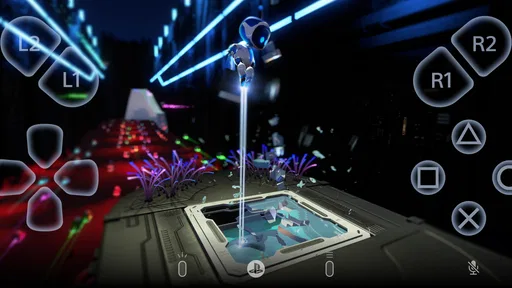
If you don’t have a controller handy, the app does offer on-screen controls. They’re fine in a pinch, but I’d recommend using a physical controller for the best experience. The on-screen buttons can feel a bit cramped, especially if you’re playing a game that requires quick reflexes.
That difference is more than a matter of preference. Touch controls put several actions on a flat screen, so it can be harder to locate a button by feel while watching the game. I’d reserve them for slower games, brief checks or situations where carrying a controller is impractical. For long sessions, a controller is the safer bet for comfort and reliable input, though it does mean bringing another device and finding a way to hold or rest it.
Sound is another part of the decision. Playing in a shared room may call for headphones or lower volume, while a quiet room can make game audio easier to follow. Remote play can give you a more private place to continue, but it does not remove the need to consider other people nearby or whether you can comfortably hear what the game is communicating. I’d try a short session in the room you plan to use before relying on it for a long one.
Situational access and useful routines
A realistic use for me would be a family evening when someone else needs the main television. I could move to another room with a phone or tablet and controller, continue a game that is already running on the console, and stop when I need to give the room back. That is a much better fit than expecting to play a demanding online match while moving between rooms or using an unreliable connection.
There’s also a useful distinction between being away from the television and being away from home. The app is designed around connecting to your PS4 or PS5, but the quality you experience depends on the connection between the device and console. Before planning to use it outside your usual setup, I’d test the exact network and location you expect to use. A feature that works well over a strong home connection may feel less dependable when either end has a weaker signal.
One non-obvious tip is to think about the route your connection takes, not just the signal bars on your phone. If play becomes choppy in one room, try moving nearer to the router or console and compare before changing several settings at once. That simple test can help distinguish a location problem from a game or controller issue. If other people are using the network heavily, choosing a quieter time may help more than repeatedly reconnecting.
The app’s voice chat can be handy when friends are part of the session. The app supports voice chat, so you can keep up with your squad during those intense multiplayer sessions. Plus, you can join voice chats using your phone’s microphone, which is super convenient.
That convenience has a context, though: a phone microphone is only helpful if you can speak comfortably and your surroundings are suitable for conversation. In a shared room, a headset or a quieter location may be preferable. I’d also test chat before a planned group session rather than discovering mid-game that the audio setup is awkward. Remote play brings the console session to another device, but it doesn’t make every room equally good for listening and speaking.
I also appreciated the ability to switch between games without needing to be in front of the console. Just tap on another game, and it’ll start streaming in seconds. This feature is golden for when you’re in the mood to jump between different types of games.
For a smoother routine, I’d keep the device charged and have the controller within reach before starting. Streaming uses the mobile device as your screen, so a low battery can cut a convenient session short. It is also worth choosing a stable place to set the device rather than balancing it in your hand for a whole play session. These small preparations don’t change the connection itself, but they reduce the avoidable friction that can make a quick gaming break feel like work.
Where the trade-offs become important
Compared with playing directly on the television, Remote Play adds flexibility but also adds a screen, a network connection and another control setup to manage. Compared with a game-streaming service, it is tied to the PlayStation console you own rather than offering an independent catalogue to browse. That distinction matters: if you want to play without relying on your home console, this is not the same kind of option. If you already have a PlayStation and simply need to free up the television, it is more relevant.
I would skip it as a main way to play if your connection is consistently unstable, if you strongly dislike small screens, or if your preferred games depend on fast, exact inputs. Competitive matches and timing-sensitive sections leave less room for streaming delay than relaxed exploration or turn-based play. Even a good setup can’t guarantee that every moment will feel identical to local play, so I’d keep the television option for sessions where responsiveness matters most.
It may also be the wrong choice when the person using the app finds touch controls tiring or difficult and has no comfortable way to use a physical controller. The on-screen option is useful as a fallback, not a universal substitute. Likewise, a smaller phone screen can be a real barrier for someone who needs larger text or more space to inspect menus. Trying the intended game and device together is more informative than judging the interface from a quick glance.
For people with different sensory or motor needs, I see the strongest benefit as choice of location and screen, not as a promise that every part of play becomes easier. Moving to a quieter room can help with concentration; using a tablet may improve the viewing experience for some people; and a physical controller may feel more familiar than touch. But the best arrangement varies, and the app’s convenience cannot compensate for a control scheme, display or connection that does not suit the person using it.
A balanced recommendation
All in all, PS Remote Play is a fantastic app for anyone looking to extend their gaming beyond the living room. It’s not perfect, but the convenience it offers is hard to beat. If you’ve ever wanted to play your PlayStation games from your bed or while someone else is using the TV, this app is definitely worth checking out.
So grab your phone, connect your controller, and get ready to game anywhere! Just make sure your Wi-Fi signal is strong, and you’ll be all set for a seamless gaming experience.
My recommendation is to try it with one game you know well, in the place where you expect to use it. That gives you a fair sense of text readability, controller comfort, sound and connection without the pressure of an important match. If those pieces work together, Remote Play can make a console you already own easier to fit around a busy household. If they don’t, playing directly on the television—or choosing a larger screen and a more dependable connection—is likely to be the more comfortable option.
The inclusive value here is practical but conditional: it gives you another way to reach your PlayStation, and that extra choice can matter when the usual room or screen is unavailable. I’d recommend it most to people who can test their setup and are happy to adapt the session to its limits. For anyone who needs consistently precise input, a large display, or a connection that does not vary, local play remains the better baseline.
Pros
- Seamless gameplay from PS console.
- Supports multiple devices and platforms.
- Easy-to-use interface for all users.
- High-quality streaming with minimal lag.
- Customizable controls for better experience.
Cons
- Requires strong internet connection.
- Some features locked behind PS Plus.
- Limited support for older devices.
- Not all games are compatible.
- Battery drain on mobile devices.
FAQs for PS Remote Play
What is PS Remote Play and how does it work?
PS Remote Play is an app that allows you to stream and play your PlayStation games on your mobile devices, PC, or other compatible screens. By connecting your PlayStation console to a Wi-Fi network, you can enjoy your favorite titles remotely. The app mirrors the console's screen, enabling you to interact with games just as if you were in front of the TV.
Do I need a PlayStation console to use PS Remote Play?
Yes, a PlayStation 4 or PlayStation 5 console is required to use PS Remote Play. The app connects to your console over a Wi-Fi network, allowing you to stream games to your device. Without a PlayStation console, you won’t be able to utilize the features of Remote Play.
What devices are compatible with PS Remote Play?
PS Remote Play is compatible with a wide range of devices including Android and iOS smartphones and tablets, Windows PCs, and Macs. Ensure your device meets the app's system requirements and that you have the latest version of the operating system installed for optimal performance.
Does PS Remote Play require a fast internet connection?
A stable and fast internet connection is essential for a smooth experience with PS Remote Play. Sony recommends a minimum internet speed of 5 Mbps, but for higher quality and less lag, a speed of at least 15 Mbps is ideal. Both your console and device should be connected to the same Wi-Fi network.
Can I use my DualShock or DualSense controller with PS Remote Play?
Yes, you can use your DualShock 4 or DualSense controller with PS Remote Play for a more traditional gaming experience. However, compatibility might vary depending on the device you're using. Ensure your controller is connected via Bluetooth or USB for seamless gameplay.


